Monday, 4 January 2016

7 steps to speed up Google Chrome

7 steps to speed up Google Chrome


I realized that Google Chrome had begun to get slow and bloated, and since there's no new streamlined browser I can switch to, I decided to see if I could speed things up a bit. Here's what I did!
Many year's ago I switch from Internet Explorer to Firefox because Internet Explorer had become slow and bloated.Then a few years later I dumped Firefox for Google Chrome because,Yes, you guessed it, Firefox had become slow and bloated.
Well, the other day I realized that Google Chrome had begun to get slow and bloated , and since there's no new streamlined browser I can switch to, I decided to see if I could speed things up a bit.
After going through these steps, my installation of Google Chrome felt noticeably faster and snappier. Good luck speeding up your browser.
Note: These tips work for both Mac and Windows (and some even work for Linux!).

#1: UPDATE CHROME

If you've not closed Google Chrome in a while then perhaps there's an update waiting for you "You can tell if there's an update on later releases of Chrome because the burger menu will change from green to yellow and then red to signify how out-of-date the browser you are running is".
7 steps to speed up Google Chrome
To force Chrome to check for an update type chrome://help and follow any prompts.

#2: DISABLE UNWANTED EXTENSIONS

Type chrome://extensions into the address bar and disable any unwanted extensions. Either uncheck the box to disable the extension or click the trash can to delete it.

#3: DISABLE UNWANTED PLUGINS

Type chrome://plugins into the address bar and disable any unwanted plugins. Just click the link to disable.

#4: SMOOTHER SCROLLING

Type chrome://flags into the address bar and find Enable fast tab/windows close. This option speeds up Chrome by allowing it to close windows separate to any JavaScript code that might be running. Then click the RELAUNCH NOW button at the bottom of the screen to apply the setting.
Note that this is an experimental feature and be sure to read the warnings at the top of the settings page in Chrome. To undo any changes click the Reset all to default button.

#5: TAB DISCARDING

Type chrome://flags into the address bar and find Enable tab discarding. This option speeds up Chrome by allowing tabs in the background to be discarded from memory if it's getting low. Then click the RELAUNCH NOW button at the bottom of the screen to apply the setting.
Note that this is an experimental feature and be sure to read the warnings at the top of the settings page in Chrome. To undo any changes click the Reset all to default button.

#6: CLEAR THE CACHE

If you're getting low on disk space then you might find Chrome will speed up if you clear the cache.Type chrome://settings/clear Browser Data into the address bar and I'd suggest choosing only the Cached images and files option.For best results clear items from the beginning of time.

#7: CHECK FOR SPYWARE AND OTHER JUNK

Windows users can make use of Google's Software Removal Tool. It might also be a good idea to scan the system using something such as Malware byte's Anti-Malware.
Mac users can check out Malware byte's Anti-Malware for Mac (don't believe the nonsense that Macs can't have viruses or malware - that may have been true a decade ago, but it's not true today).


Sunday, 3 January 2016

ShowBox v4.27 Build 64 APK

ShowBox v4.27 Build 64 APK – Watch Latest Movies And TV Shows In HD ! Latest 


ShowBox Apk – Watch Latest Movies And TV Shows In HD

Show Box is a free movies and TV shows streaming app for the Android.With Show Box App Apk you can watch latest movies and TV shows for free from your android device.It is regarded as one of the best free Android apps as it allows users to watch movies and TV in HD for free.Watch your favorite TV show  episode's ,drama's and movies you missed last week or download latest movies to your device.And save money spent on DVD’s,Blu Ray's and Cinema Theater.
Features!
  • Download lates movies in HD.
  • Stream latest movies in HD.
  • Download or Stream Latest TV shows in HD.
  • Stream using MX Player.
  • Internal Video Player also included.
  • Add subtitle to any movie or TV Show.
Screen shots:


Download Links:


Saturday, 2 January 2016

Screen Recorder Pro- No-Root APK

Screen Recorder Pro- No-Root v1.08 APK is Here ! [Latest][No-Root]


Screen Recorder No-Root 
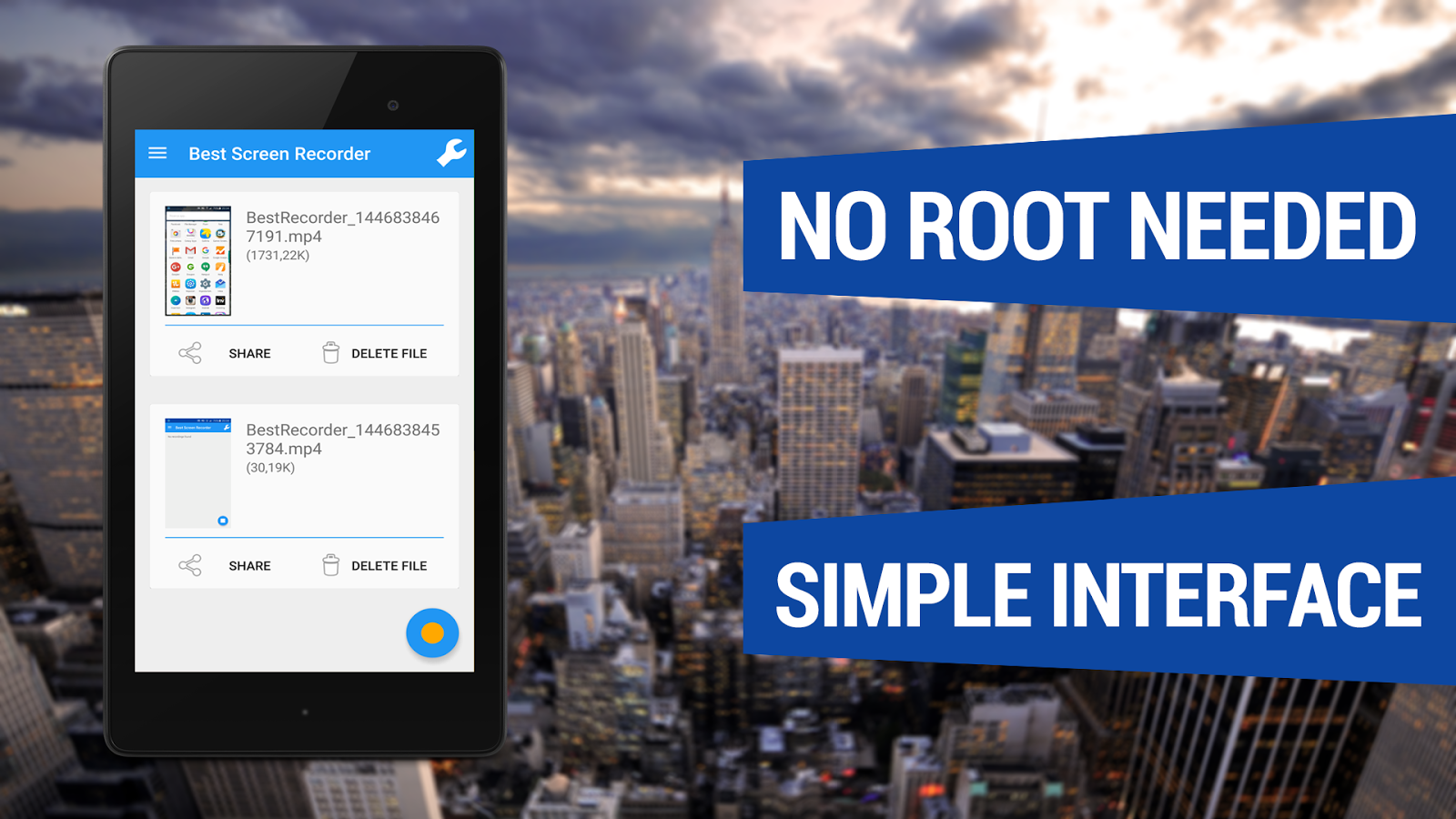
With Best Screen Recorder No-Root you can easily capture your phone/tablet screen to a MPEG4 Full-HD video + audio file at a high frame rate. It is the best screen recording software for Android!
Many users utilize this app to record
  • All types of GAMES with Very High Frame Rate!
  • Video Tutorials
  • Video Calls
  • Promotional or demo videos for their apps
  • Incoming/Outgoing Phone calls
  • Hundreds of other purposes!
In the Settings Menu there are advanced settings that you can customize like Resolution, Frame Rate, Video Bitrate, Starting Countdown, record with or without Audio and the Video Duration.
Here are some other COOL features
  • Android Wear compatible
  • Front camera screen overlay
  • Shake device to stop recording
  • Shake device to take a screenshot
  • Lock device to stop recording
  • You can now record audio
This app records screen without ROOT access on ALL supported smartphones!
How to Install?
  1. Download apk file drom below link
  2. Make sure you have enabled Unknown Sources(Settings>>Security>>Unknown Sources)
  3. Install apk on your android device
  4. All done, Enjoy :) !

GIMP

GIMP

GIMP
If you're looking to removing that pesky red eye from this year's Christmas snaps, you're going to have to sort yourself out with some image editing software. But if you've ever balked at the high asking price of Adobe Photoshop,GIMP could be the answer to your prayers – it's completely free.

GIMP is a powerful free image editor that really punches above its weight

It also comes with an impressive range of tools to rival its Adobe equivalent, all developed on a regularly updated open source basis. With a rich feature set that will appease beginners and experts alike – including layer masks, bezier curves, gradients, brushes and more – GIMP mounts a solid challenge to the Adobe behemoth.

10 Useful Tools For Blogger


Creating

1. Drupal – It all starts with the platform and it’s hard to beat the free Drupal. It’s easy to use, optimized for search engines right out of the box, and has a vast library of useful extensions along with a helpful, vibrant community.
2. Evernote – Create a blog post ideas notebook in Evernote to record ideas as they occur. When you start to write consistently, you’ll get inspiration for blog post anywhere, and at anytime. Store them in Evernote by dragging pictures into your notebook, recording audio notes, and compiling research links and notes. You can do this on your laptop or mobile device and the notes are immediately saved and synced.
Another tool for saving ideas for blog posts is Pocket, the terrific read-it-later app. Sign up, install the browser extension, and save research articles as you discover them. Pocket gives you the option to quickly add a tag, like “blog post ideas” tag for quick retrieval.
3. Pomodoro Timer – Lack of sustained focus is a big problem for writers. Instead of trying to knock out a post in two hours without a break and falling victim to distractions, like the constant stream of notification beeps from your social networks, follow the pomodoro technique and focus your writing in 25 minute increments.
4. Images – It’s now time to add an image to your blog post. Creative Commons is a great place to find royalty-free images. It’s a one-stop search engine for Flickr, Clip Art, Wikimedia, and more. I also like Fotolia’s huge library of $1 images.
5. Pixlr – You will occasionally need to edit photos. Ditch the much too complex and expensive Photoshop and give online-editing tool, Pixlr, a try. This free, nifty program even allows you to layer images, the holy grail of photo-editing tools. For Mac users, the native “Preview” applications handles most jobs.

Optimizing

6. Yoast SEO plugin – Another way people find your post is via search. You can help out the search engines by optimizing your posts, but it can get a bit complicated. Let SEO Yoast plugindo the work for you. It incorporates everything from a snippet preview and page analysis functionality that helps you optimize your pages content, images titles, meta descriptions and more. This is a must-have WordPress plugin.
7. Google Keyword tool – If you want to take it up a notch and find out which high-ranking keywords to use, check out Google Keyword Tool. Note that this is a secondary tool. Useful, relevant content is priority number one.

Promoting

8. Social media buttons – Social media dramatically expands your audience. For many blogs Twitter, Facebook, LinkedIn and even Pinterest ranks in the top-5 in referral traffic sources. You’ll need to install social sharing buttons, like Facebook and Twitter on your blog to make it easy for your readers to share. You can install scripts for each or use a plugin like AddThis orShareaholic.
9. RSS Feed – Give visitors to your site the option to get all news posts by placing an RSS icon on your blog. The free Feedburner from Google also provides an option to subscrbe via email. A fee-based alternative is Feedblitz.

Analyzing

10. Google Analytics – Find out which posts are being read, who are reading them, and how they found the posts. The free, comprehensive Google Analytics provides great insight into these and much more. If you can’t wait to check out your traffic numbers, check out the handyAnalytics App for the iPhone. Use the data to help guide your choice of content.
These are just a few of the many tools available to make your blogging life more productive and rewarding. If you have any can’t-do-without tools, please share in the comments below.